> ## Documentation Index
> Fetch the complete documentation index at: https://docs.nuevesolutions.com/llms.txt
> Use this file to discover all available pages before exploring further.
# RAF Admin Console
The **RAF Admin Console** is a back-office web app for your institution's staff to manage the referral program. It gives you full visibility into campaigns, referrals, and rewards — all in one place, with no technical knowledge required.
Staff can create and edit campaigns, monitor how referrals are progressing, process reward payouts, and download reports — all from a simple web interface.
***
## Dashboard
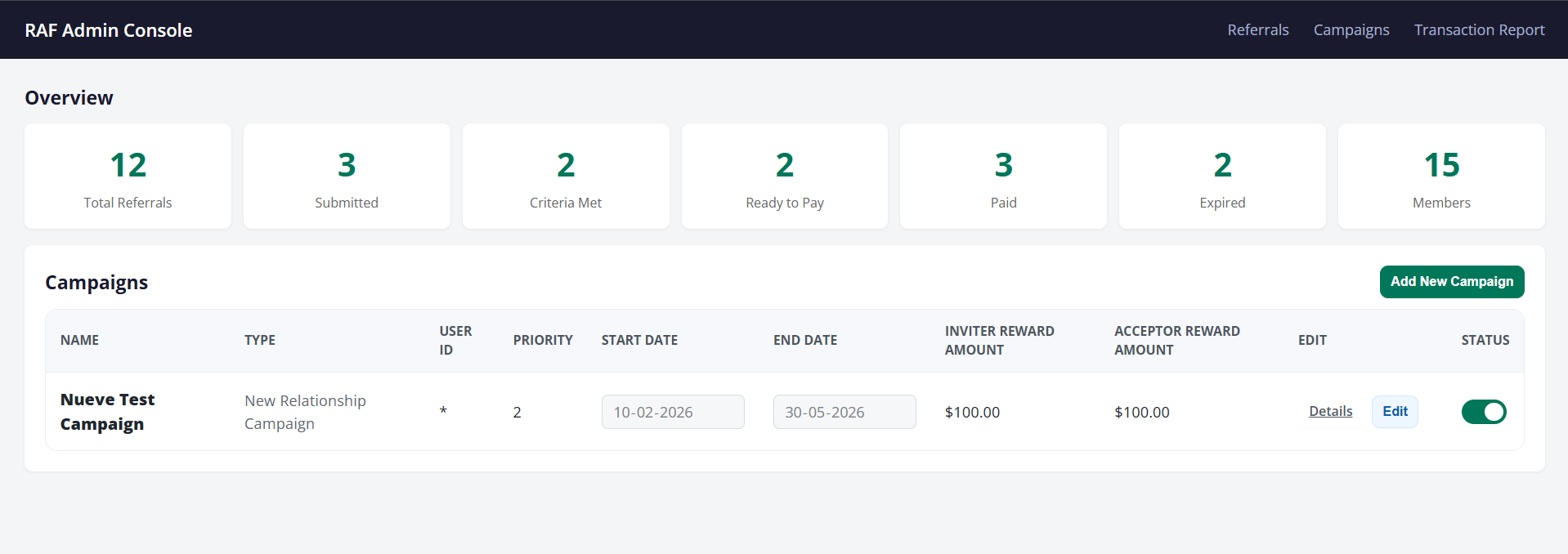 The dashboard is the first thing staff see when they log in. It gives an at-a-glance summary of the entire referral program:
**Overview stats (top row)**
| Stat | What It Means |
| ------------------- | ------------------------------------------------------------------------------------------------- |
| **Total Referrals** | Every referral ever submitted across all campaigns |
| **Submitted** | Referrals where the acceptor hasn't yet finished the qualifying activity |
| **Criteria Met** | Acceptors who have completed all the required activity — reward is ready to be paid |
| **Ready to Pay** | Referrals queued and confirmed for reward payout |
| **Paid** | Referrals where both the inviter and acceptor have received their rewards |
| **Expired** | Referrals where the eligibility window closed before criteria were met — no reward will be issued |
| **Members** | Total number of unique members who have a referral code |
**Campaigns table (bottom section)**
Below the stats, the dashboard lists all active and inactive campaigns. For each campaign you can see its name, type, priority, start and end dates, how much each party earns, and whether the campaign is currently live (the toggle on the right).
From here staff can click **Details** to view the full campaign, **Edit** to update dates or reward amounts, or **Add New Campaign** to create a new one.
***
## Referrals
The dashboard is the first thing staff see when they log in. It gives an at-a-glance summary of the entire referral program:
**Overview stats (top row)**
| Stat | What It Means |
| ------------------- | ------------------------------------------------------------------------------------------------- |
| **Total Referrals** | Every referral ever submitted across all campaigns |
| **Submitted** | Referrals where the acceptor hasn't yet finished the qualifying activity |
| **Criteria Met** | Acceptors who have completed all the required activity — reward is ready to be paid |
| **Ready to Pay** | Referrals queued and confirmed for reward payout |
| **Paid** | Referrals where both the inviter and acceptor have received their rewards |
| **Expired** | Referrals where the eligibility window closed before criteria were met — no reward will be issued |
| **Members** | Total number of unique members who have a referral code |
**Campaigns table (bottom section)**
Below the stats, the dashboard lists all active and inactive campaigns. For each campaign you can see its name, type, priority, start and end dates, how much each party earns, and whether the campaign is currently live (the toggle on the right).
From here staff can click **Details** to view the full campaign, **Edit** to update dates or reward amounts, or **Add New Campaign** to create a new one.
***
## Referrals
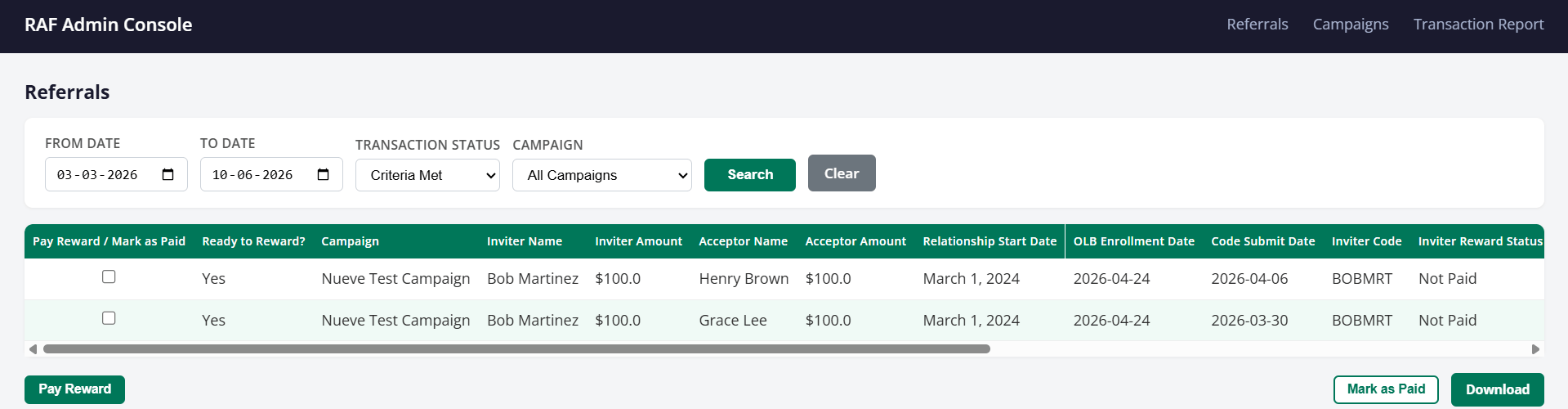 The Referrals page shows every referral in the system with full details about both the inviter (who shared their code) and the acceptor (who submitted it).
**Filtering**
Staff can filter the list by date range, referral status, and campaign to zero in on exactly what they need to review or action.
**Referral table columns**
| Column | What It Shows |
| --------------------------- | -------------------------------------------------------------------------------- |
| **Ready to Reward?** | Whether the acceptor has met all eligibility criteria and is cleared for payment |
| **Campaign** | Which active campaign this referral belongs to |
| **Inviter Name** | The member who shared their referral code |
| **Inviter Amount** | The reward amount the inviter will receive |
| **Acceptor Name** | The acceptor who submitted the referral code |
| **Acceptor Amount** | The reward amount the acceptor will receive |
| **Relationship Start Date** | When the acceptor opened their account |
| **OLB Enrollment Date** | When the acceptor first logged into digital banking |
| **Code Submit Date** | When the referral code was entered |
| **Inviter Code** | The unique referral code used for this referral |
| **Inviter Reward Status** | Whether the inviter's reward has been paid or is still pending |
**Paying rewards**
Staff can select one or more referrals using the checkbox on the left and then:
* **Pay Reward** — Sends the reward directly to both the inviter's and acceptor's accounts from the configured holding account
* **Mark as Paid** — Records the reward as paid manually, without triggering a transfer (useful if the payment was handled outside the system)
* **Download** — Exports the filtered list as a CSV for records or reporting
***
## Campaigns
The Campaigns section lets staff manage all referral campaigns for the institution.
Each campaign defines the rules of the program: who qualifies, what the acceptor needs to do to earn the reward, how much the inviter and acceptor receive, and how long the program runs.
**What you can do:**
* **Create a new campaign** — Set the campaign name, type, dates, reward amounts, and eligibility rules
* **Edit an existing campaign** — Update end dates or adjust reward amounts at any time; start dates can only be changed before the campaign begins
* **Enable or disable a campaign** — Use the status toggle to turn a campaign on or off without deleting it
***
## Transaction Report
The Transaction Report gives a paginated view of all reward transactions — every transfer that has been made from the FI's holding account to inviters and acceptors as part of the referral program.
Staff can filter by date range and download the full report as a CSV for reconciliation, auditing, or sharing with finance teams.
***
## Who Has Access
The admin console uses role-based access to control what different staff members can see and do:
| Role | What They Can Do |
| --------------- | -------------------------------------------------------------------------- |
| **Super Admin** | Full access — manage campaigns, process rewards, manage other admin users |
| **Admin** | Manage campaigns and process rewards |
| **Viewer** | Read-only — can view all data and download reports but cannot make changes |
The Referrals page shows every referral in the system with full details about both the inviter (who shared their code) and the acceptor (who submitted it).
**Filtering**
Staff can filter the list by date range, referral status, and campaign to zero in on exactly what they need to review or action.
**Referral table columns**
| Column | What It Shows |
| --------------------------- | -------------------------------------------------------------------------------- |
| **Ready to Reward?** | Whether the acceptor has met all eligibility criteria and is cleared for payment |
| **Campaign** | Which active campaign this referral belongs to |
| **Inviter Name** | The member who shared their referral code |
| **Inviter Amount** | The reward amount the inviter will receive |
| **Acceptor Name** | The acceptor who submitted the referral code |
| **Acceptor Amount** | The reward amount the acceptor will receive |
| **Relationship Start Date** | When the acceptor opened their account |
| **OLB Enrollment Date** | When the acceptor first logged into digital banking |
| **Code Submit Date** | When the referral code was entered |
| **Inviter Code** | The unique referral code used for this referral |
| **Inviter Reward Status** | Whether the inviter's reward has been paid or is still pending |
**Paying rewards**
Staff can select one or more referrals using the checkbox on the left and then:
* **Pay Reward** — Sends the reward directly to both the inviter's and acceptor's accounts from the configured holding account
* **Mark as Paid** — Records the reward as paid manually, without triggering a transfer (useful if the payment was handled outside the system)
* **Download** — Exports the filtered list as a CSV for records or reporting
***
## Campaigns
The Campaigns section lets staff manage all referral campaigns for the institution.
Each campaign defines the rules of the program: who qualifies, what the acceptor needs to do to earn the reward, how much the inviter and acceptor receive, and how long the program runs.
**What you can do:**
* **Create a new campaign** — Set the campaign name, type, dates, reward amounts, and eligibility rules
* **Edit an existing campaign** — Update end dates or adjust reward amounts at any time; start dates can only be changed before the campaign begins
* **Enable or disable a campaign** — Use the status toggle to turn a campaign on or off without deleting it
***
## Transaction Report
The Transaction Report gives a paginated view of all reward transactions — every transfer that has been made from the FI's holding account to inviters and acceptors as part of the referral program.
Staff can filter by date range and download the full report as a CSV for reconciliation, auditing, or sharing with finance teams.
***
## Who Has Access
The admin console uses role-based access to control what different staff members can see and do:
| Role | What They Can Do |
| --------------- | -------------------------------------------------------------------------- |
| **Super Admin** | Full access — manage campaigns, process rewards, manage other admin users |
| **Admin** | Manage campaigns and process rewards |
| **Viewer** | Read-only — can view all data and download reports but cannot make changes |