
Campaign Management
Campaigns define when the referral program is active, who receives rewards, and how much they receive.Creating a Campaign
- Navigate to the Campaigns section of the admin console.
- Click to create a new campaign and provide the following:
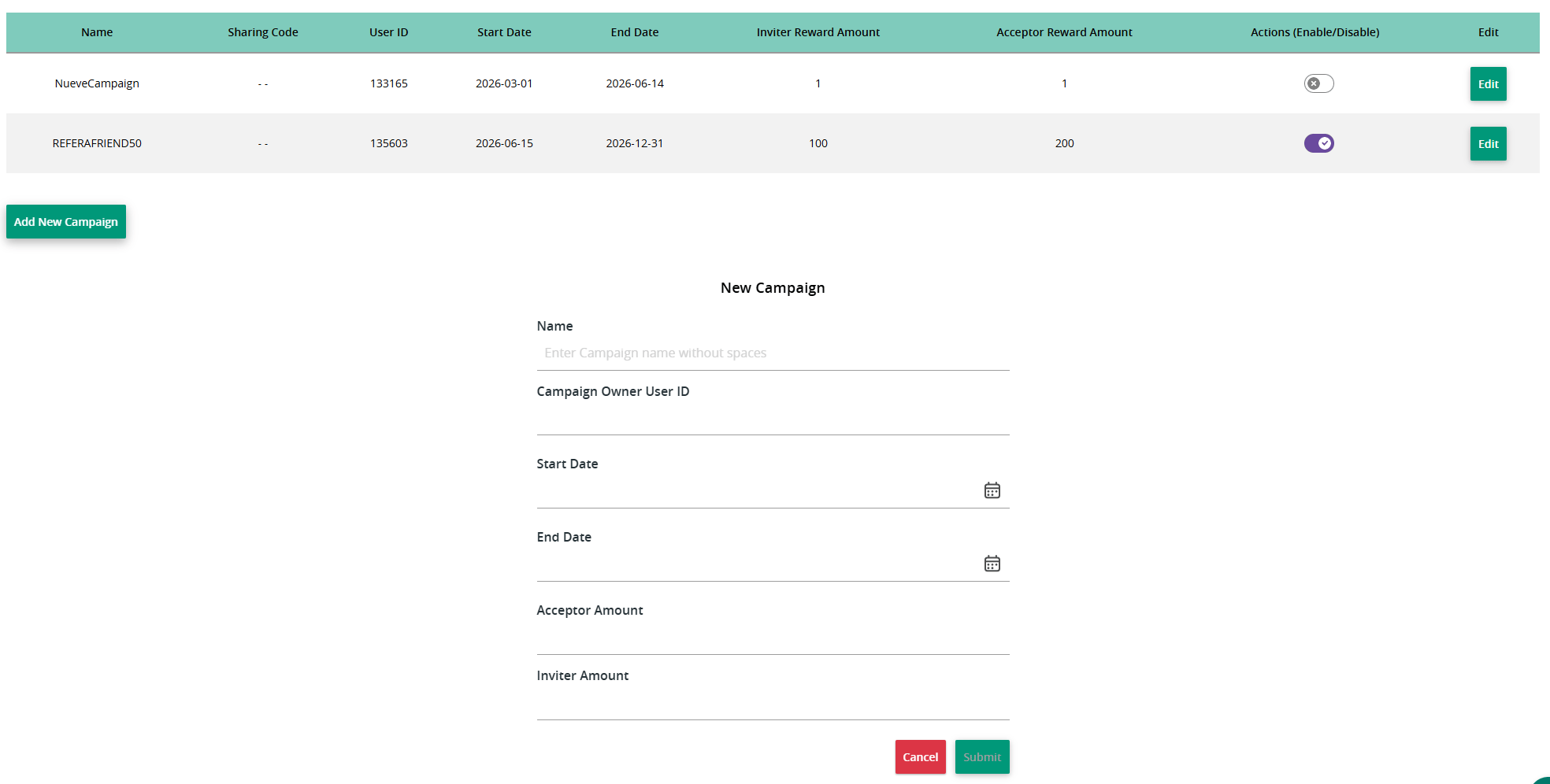
- Only one campaign should be active at a time. Campaigns can be enabled or disabled at any time without being deleted.
Note: A campaign can only be edited before its start date. Once a campaign has started, its configuration is locked.
Types of Campaigns
The campaign type determines when and how the referral code submission prompt is presented to the user.New Relationship Campaign
The goal of this campaign is to acquire new customers through referrals from existing customers.- The referral code submission prompt is automatically displayed when a new user logs in for the first time.
- The user can submit a referral code during the onboarding process.
- This campaign is intended for users who are establishing a new relationship with the financial institution.
New Product Campaign
The goal of this campaign is to encourage the opening of new accounts or products through the financial institution’s marketing efforts, whether the user is a new or existing customer.- The referral code submission prompt is not displayed automatically on login.
- The acceptor must click the Submit Referral Code button to enter their referral code.
- This campaign is intended for users opening a new qualifying account or product after enrollment.
Managing Campaigns
All campaigns are listed in the console with their status, date range, and reward amounts. Use the toggle next to any campaign to disable it before its end date without deleting it.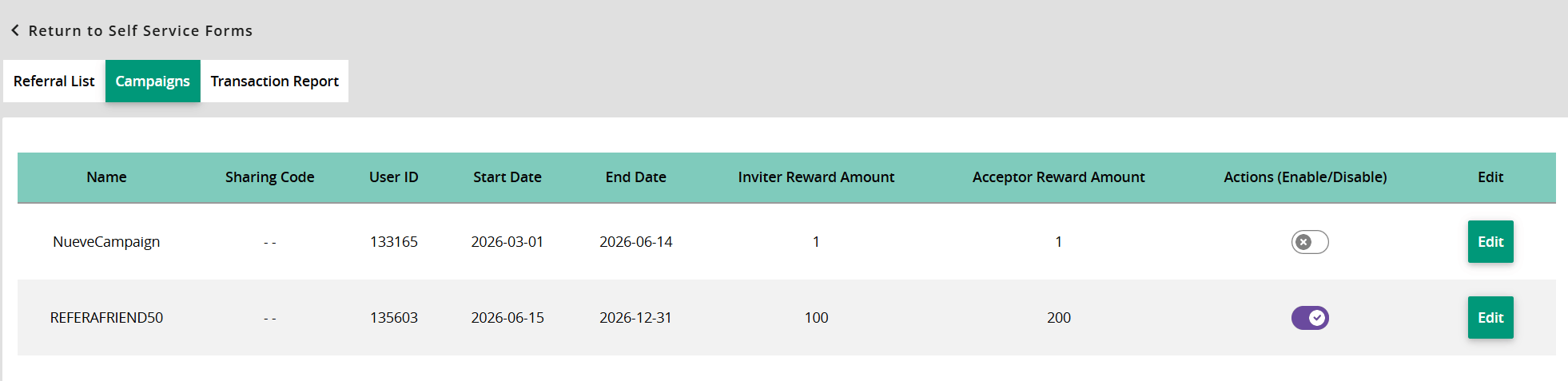
Referral List and Search
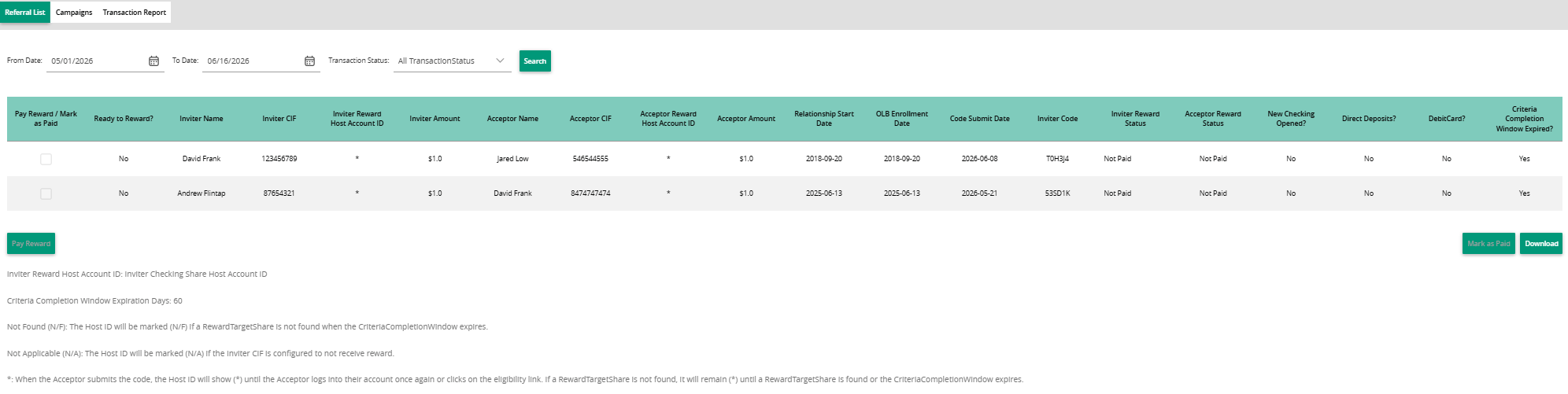
The Referral List page shows all referrals submitted under active and past campaigns. By default, the list displays referrals from the past 7 days. Administrators can filter by:- Date range — narrow results to a specific period
- Reward status — filter by
Not PaidorPaid - Member search — search by member name or account ID
Reward Processing
Rewards are processed from the Referral List page once referrals are eligible for payout.- Select the date range and transaction status to surface eligible referrals.
- The system verifies each party before disbursing a reward.
- Holds an eligible account type
- Has not exceeded the configured reward limit (e.g. maximum 10 rewards per year)
- Is not on the administrator-defined skip list
- Holds an eligible account type
- Account was opened within the campaign date range
- Has satisfied all eligibility criteria
- Account balance is non-negative
- Select the referrals to process and confirm the payout.
- The system transfers funds from the reward holding account to each party’s account and records the transaction ID.
- Reward statuses update to Paid. Failed transactions are flagged for manual review.
Note: Rewards can also be marked as Paid manually by an administrator without initiating a fund transfer — for example, when a reward was issued outside the system.
Transaction Report
The Transaction Report page provides a full history of all reward transactions across campaigns. By default it shows the past 7 days across all active campaigns. Use the date range filter and Campaign dropdown to narrow results, then click Search to update the table. The table includes: transaction ID, date, user information, campaign name, amount, and status. Pagination controls and a per-page record count let you navigate large result sets. Use the Download button to export the filtered data as a CSV file for reporting, auditing, or sharing.